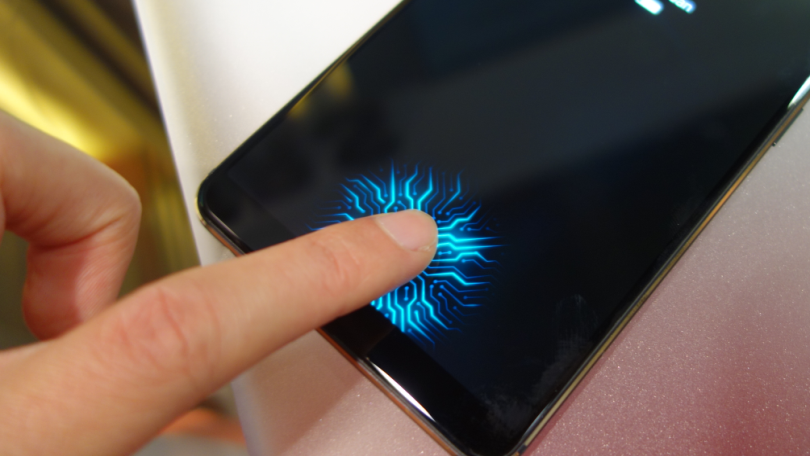
Is your Android phone secure? Every day, we carry phones with personal photos, messages, and financial information. Setting up a display fingerprint lock is the smartest way to protect your device in 2026.
This guide shows you exactly how to set fingerprint lock on your Android screen. Whether you have a Samsung, Google Pixel, Xiaomi, or OnePlus phone, the steps are simple and take just 5 minutes. I’ll also share personal tips to make your fingerprint unlock faster and more reliable.
What is Display Fingerprint Lock?
Understanding Fingerprint Technology
A display fingerprint lock is a biometric security method that uses your unique fingerprint to unlock your Android phone. Instead of typing passwords or drawing patterns, you simply place your finger on your screen’s sensor. Your phone instantly recognizes it and unlocks.
Why is it called “display” fingerprint?
The sensor sits under your phone’s screen (not on the back or side). Modern Android phones use two types of display sensors:
- Optical Fingerprint Sensors – Use light to scan your fingerprint ridges
- Ultrasonic Fingerprint Sensors – Use sound waves for deeper scanning (more accurate)
Both are fast, accurate, and secure.
Why Choose Fingerprint Lock in 2026?
In 2026, fingerprint security has become the standard on most Android phones. Here’s why it’s the best choice:
- Super Fast – Unlock your phone in 0.5 seconds
- Very Secure – Your fingerprint data is encrypted on your phone
- Convenient – No need to remember passwords or draw patterns
- Reliable – Works in dark conditions with modern sensors
- Gesture Control – Some phones let you use fingerprint for shortcuts
Key Features and Benefits of Display Fingerprint Lock
Main Features You’ll Get
1. Multiple Fingerprints
You can add up to 10 fingerprints on most Android phones. Add your thumbs, index fingers, or even your friend’s fingerprints. This is super helpful when you’re holding your phone in different ways.
2. Fast Unlock Speed
Modern display sensors in 2026 are lightning-fast. The average unlock time is just 0.3 to 0.5 seconds. No lag, no waiting – your phone opens instantly.
3. Accurate Recognition
Thanks to AI-assisted scanning, your phone now learns how you hold it over time. It gets more accurate with each use. Even if your finger is slightly dirty, it still works (usually).
4. Biometric Security
Your fingerprint data is stored in an encrypted area on your phone. It’s not sent to the cloud or saved on Google’s servers. This means it’s completely private and secure.
5. Backup Security Method
You can’t unlock your phone with just a fingerprint. You must set a PIN, password, or pattern as backup. This means even if someone copies your fingerprint, they still can’t access your phone.
How It Helps Your Daily Life
- Protect Your Privacy – Nobody else can unlock your phone easily
- Secure Your Payments – Use fingerprint to authorize purchases in Google Play
- Lock Individual Apps – Protect WhatsApp, Instagram, Gmail, and more
- Fast Authentication – Unlock apps without entering passwords
- Prevent Unauthorized Access – Especially useful if family members use your phone
How to Set Display Fingerprint Lock: Step-by-Step Guide
Step 1 – Go to Settings
First, open the Settings app on your Android phone. It usually has a gear icon.
Step 2 – Find Security Settings
Here’s where it can vary by phone brand:
For Google Pixel phones:
- Tap Security & privacy → Device unlock → Fingerprint
For Samsung Galaxy phones:
- Tap Security and privacy → Lock screen → Fingerprints
For Sony, OnePlus, Xiaomi:
- Tap Security → Biometric or Lock screen & security
If you can’t find it, search for “Fingerprint” in Settings (use the search icon).
Step 3 – Set a Backup Method First
Here’s the important part: You MUST set a backup security method before adding fingerprint.
Choose one:
- PIN – 6+ numbers (example: 123456)
- Pattern – Draw a pattern on the screen
- Password – Letters and numbers (most secure)
I recommend a 6-digit PIN because it’s secure and fast to type.
Step 4 – Add Your Fingerprint
Once your backup is set:
- Tap Add Fingerprint or Register Fingerprint
- Place your finger on the sensor (at the bottom of your screen)
- Press firmly and hold for 1-2 seconds
- Lift your finger when it vibrates
- Repeat 5-10 times until it says “Complete”
Pro Tip: The system will ask you to touch the sensor from different angles. Don’t skip this – it helps your phone recognize your finger even when you’re holding the phone differently.
Step 5 – Add More Fingerprints (Optional)
You can add more:
- Tap Add Fingerprint again
- Follow the same steps
- Most phones let you add up to 10 fingerprints
I usually add both thumbs and my index fingers. This way, no matter how I hold my phone, it unlocks instantly.
Step 6 – Test Your Setup
Lock your phone and try unlocking it:
- Press the power button to lock it
- Place your finger on the sensor
- It should unlock in half a second
If it doesn’t work, clean the sensor (dust affects it) and try again.
Display Fingerprint Lock vs. Alternative Methods
Comparison Table
| Feature | Fingerprint | PIN/Password | Pattern | Face Unlock |
|---|---|---|---|---|
| Speed | 0.5 seconds | 2-3 seconds | 1-2 seconds | 0.5 seconds |
| Security | Very High | Very High | Medium | High |
| Works in Dark | Yes | Yes | Yes | Depends |
| Convenience | Excellent | Good | Good | Excellent |
| Can Be Copied | Unlikely | No | No | Sometimes |
| Accuracy | 99.9% | 100% | 98% | 95% |
Fingerprint vs. PIN Lock
Fingerprint is faster – You don’t type anything, just touch the screen.
PIN is more reliable – It always works unless you forget it. Fingerprint sometimes fails if your finger is wet or dirty.
Fingerprint vs. Pattern Lock
Fingerprint is more secure – A pattern can be guessed or copied from the screen.
Pattern is easier – But less secure if people watch you unlock your phone.
Fingerprint vs. Face Unlock
Fingerprint is more private – Face unlock can be fooled with photos (on older phones).
Face unlock is faster – Just point your phone at your face, it works instantly.
Best solution? Use both! Many phones let you set up fingerprint AND face unlock together.
Pro Tips to Make Your Fingerprint Lock Better
Tip 1 – Clean Your Screen Regularly
Dust, dirt, and oily fingerprints reduce accuracy. Clean the bottom of your screen (where the sensor is) with a soft cloth once a week.
Tip 2 – Let Your Phone Learn Your Finger
The first week after setup, use your fingerprint 20-30 times. Your phone’s AI learns your fingerprint pattern and gets more accurate.
Tip 3 – Add Fingerprints from Different Angles
When adding a fingerprint:
- Touch straight on (flat finger)
- Touch at an angle (thumb)
- Touch from the side (index finger)
This helps your phone recognize your finger no matter how you hold the phone.
Tip 4 – Use a Screen Protector That Works
Some cheap screen protectors block the fingerprint sensor. Use an official protector or one specifically designed for your phone model.
Tip 5 – Keep Backup PIN Handy
Sometimes your finger won’t be recognized (wet hands, wet screen, sensor malfunction). You’ll need your backup PIN. Don’t forget it!
Tip 6 – Update Your Phone Software
Google and Samsung regularly improve fingerprint accuracy through updates. Go to Settings > About phone > Check for updates every month.
Tip 7 – Lock Important Apps Too
Your phone’s fingerprint lock protects the main screen. But lock individual apps (WhatsApp, Gmail, Photos, Banking apps) for extra security.
Troubleshooting Common Fingerprint Problems
“Fingerprint Not Recognized” Error
Problem: You place your finger but it doesn’t unlock.
Solutions:
- Clean the sensor – Wipe the bottom of your screen with a clean cloth
- Dry your finger – Wet or sweaty fingers don’t work well. Dry your hand first
- Remove the screen protector – If it’s not designed for the sensor, it blocks it
- Re-register your fingerprint – Delete it and add it again, but this time touch from different angles
- Check for phone damage – If the screen is cracked, the sensor might be damaged
“Sensor Not Responding” Error
Problem: The sensor doesn’t react at all.
Solutions:
- Restart your phone – Sometimes the sensor freezes. A restart fixes it
- Update your Android version – Go to Settings > System > System Update
- Check if it’s too cold – If you’re outside in winter, the sensor might slow down. It’s normal
- Factory reset as last resort – Only if nothing else works
“Fingerprint Unlock is Slow”
Problem: It takes 2-3 seconds to unlock instead of 0.5 seconds.
Solutions:
- Clean the sensor regularly (once a week minimum)
- Make sure the sensor area is dry
- Use multiple fingerprints – The phone checks all of them, which takes time. Stick to 2-3 fingerprints
- Check Android version – Outdated Android is slower. Update it
“I Forgot My Backup PIN”
Problem: You set a PIN but forgot it.
Solutions:
- Try to remember – Think about patterns you usually use
- Use your Google account – After 5 failed attempts, tap “Forgot PIN?” and sign in with your Google account
- Contact Samsung/Google support – They can help verify your identity
- Factory reset – As last resort. This erases everything. Go to recovery mode (power + volume down) and select “Wipe data”
Security: Is Fingerprint Lock Safe?
How Secure Is Fingerprint Lock?
Very secure. In 2026, fingerprint security is considered one of the safest phone lock methods. Here’s why:
1. Data is Encrypted
Your fingerprint data is stored in a protected area on your phone (called Secure Enclave on Apple or TEE on Android). It’s encrypted and can’t be stolen by hackers.
2. It’s Not Stored in the Cloud
Your fingerprint is NOT sent to Google, Samsung, or any company. It stays only on your phone.
3. Hard to Copy
Unlike passwords, you can’t copy or steal a fingerprint easily. You’d need physical access to your actual finger.
4. Works With Backup PIN
Even if someone somehow copies your fingerprint, they still need your PIN or password to unlock your phone. Double security!
5. Protected by AI
Modern sensors use AI to detect fake fingerprints (like fingerprint films or silicone copies). It’s almost impossible to fool them.
Fingerprint vs. PIN Security Comparison
- Fingerprint: Harder to steal, can’t be guessed, unique to you
- PIN: Can be guessed or watched while you type, but never fails
- Best approach: Use both together (fingerprint first, PIN as backup)
Privacy Concerns
Does Google store my fingerprint? No.
Can police force me to unlock with my fingerprint? In most countries, they can force your finger to the sensor. In some places, forcing a PIN is harder.
Is it safe for payments? Yes. Your payment information is protected separately.
Fingerprint Lock Updates in 2026
What’s New in Android 14-16
Swipe-Based Fingerprint (Android 16)
Samsung Galaxy phones with Android 16 and One UI 8 now use a swipe-style system:
- Instead of pressing, you swipe your finger across the sensor
- This is faster and more natural
- Works even with dirty fingers
AI-Assisted Scanning
Google Pixel and Samsung phones now use AI to:
- Learn your unique fingerprint pattern
- Recognize your finger even if it’s at an angle
- Adapt over time (gets more accurate with use)
Gesture Control
Some phones let you assign actions to your fingerprint:
- Swipe down to open notifications
- Tap twice to launch camera
- Different fingerprints trigger different actions
Faster Sensors
New optical and ultrasonic sensors unlock your phone in just 0.3 seconds.
Better Backup Methods
You can now use:
- PIN lock
- Pattern lock
- Password lock
- Or combine fingerprint with face unlock
Which Phones Have Display Fingerprint Lock in 2026?
Google Pixel Series:
- Pixel 6 and newer ✓
Samsung Galaxy:
- Galaxy S20 and newer ✓
- Galaxy A50 and newer ✓
Other Brands:
- OnePlus (all recent models)
- Xiaomi (all recent models)
- OPPO (all recent models)
- Realme (mid-range and up)
- Nothing Phone ✓
- Motorola (some models)
Note: Older phones might have fingerprint on the back or side button instead of display. That’s fine – the setup steps are similar.
Frequently Asked Questions (FAQs)
Q1 – How many fingerprints can I add to my Android phone?
Answer: Most modern Android phones let you add 5-10 fingerprints. Some premium models allow more. The more fingerprints you add, the slightly longer it takes to unlock (because the phone checks all of them). I recommend adding 3-5 fingerprints for the perfect balance of security and speed.
Q2 – What if my fingerprint sensor stops working?
Answer: First, clean the sensor with a soft cloth. If that doesn’t help, update your Android version. If it still doesn’t work, your sensor might be hardware-damaged. Contact your phone’s manufacturer for repair. Meanwhile, use your PIN or pattern to unlock.
Q3 – Is fingerprint lock safe for banking and payments?
Answer: Yes, absolutely. Banks and payment apps use fingerprint as one of the safest authentication methods. Your payment information is protected separately from your fingerprint data. Fingerprint unlock is safer than typing your PIN because nobody can see it or guess it.
Q4 – Can twins unlock each other’s phones using fingerprints?
Answer: Very unlikely. Even identical twins have different fingerprints. Fingerprint recognition is 99.9% accurate. The chance of a wrong match is less than 1 in a million. So no, your twin cannot unlock your phone with their fingerprint.
Q5 – What happens if I have cuts or scars on my finger?
Answer: Small cuts don’t affect your fingerprint much. But deep scars or burns can reduce accuracy. If this happens, register a different finger (you can add up to 10). If all your fingers are affected, use your PIN as backup. Once the cut heals, re-register that finger for better accuracy.
Q6 – Does fingerprint lock drain battery faster?
Answer: No, fingerprint unlock uses very little battery. Modern sensors are extremely power-efficient. The battery drain is less than 1% per day. You won’t notice any difference in battery life.
Q7 – Can I set fingerprint lock on old Android phones?
Answer: It depends on your phone model. Phones from 2015 onwards usually support fingerprint. But the sensor might be on the back or side, not on the display. Check your phone’s specifications or try going to Settings > Security > Fingerprint. If you don’t see it, your phone doesn’t have a fingerprint sensor.
Q8 – What’s the difference between optical and ultrasonic sensors?
Answer: Optical sensors use light (faster, works well in most conditions). Ultrasonic sensors use sound waves (works even when your finger is slightly wet, more accurate). Both are secure. Ultrasonic is slightly more advanced and found on premium phones like Samsung Galaxy S series and Pixel 8 Pro.
Conclusion
Setting up a display fingerprint lock on your Android phone is one of the smartest security decisions you can make in 2026. It’s fast (0.5 seconds), secure (99.9% accurate), and convenient (no typing needed).
Here’s what we covered:
- What display fingerprint lock is and why it’s better than passwords
- Step-by-step guide to set it up on any Android phone
- How to compare fingerprint with PIN, pattern, and face unlock
- Pro tips to make your fingerprint faster and more reliable
- How to fix common problems (sensor not working, too slow, etc.)
- Why fingerprint security is safe and private
- New fingerprint features coming in 2026
Your next step? Open your Settings app right now and follow the steps in this guide. It takes just 5 minutes, and your phone will be much more secure.
One more thing: Don’t forget to add at least 2-3 different fingerprints. This way, no matter how you hold your phone, it unlocks instantly.
Stay secure, stay fast. Happy unlocking! 🔒
Additional Resources & References
Official Setup Guides:
- Google Pixel: support.google.com/pixelphone
- Samsung Galaxy: samsung.com/support
- Sony Xperia: sony.com/support
Need Help?
- Contact your phone manufacturer’s support team
- Visit your phone’s settings and look for “Fingerprint troubleshooting”
- Check your phone’s official documentation
