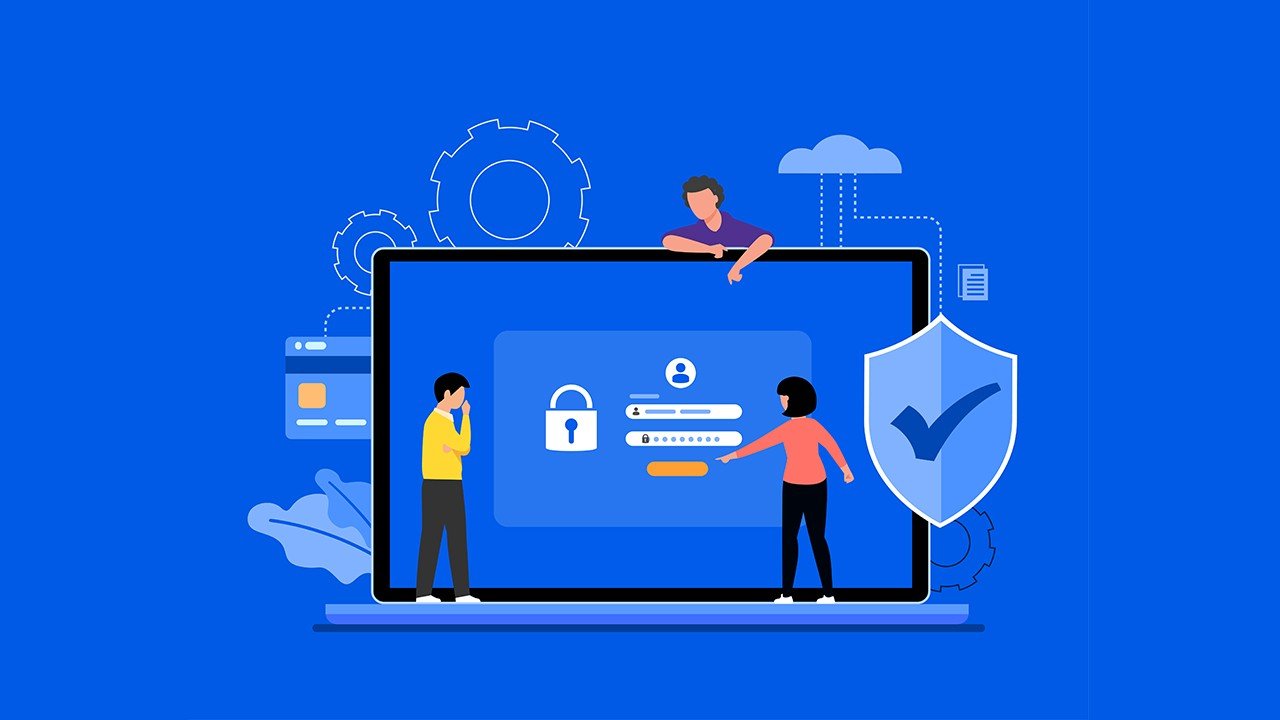
Imagine logging into your email only to find a stranger halfway across the world has your password. Scary, right? That’s where two-factor authentication (2FA) saves the day—adding a second check to keep hackers out.
This beginner-friendly guide breaks down 2FA from scratch. You’ll learn what it is, how it works, the best free tools, setup steps, and tips to stay secure without tech headaches. Perfect for anyone new to online safety.
What is Two-Factor Authentication?
Two-factor authentication (2FA) is like a double-locked door for your online accounts. You need two proofs of identity: something you know (your password) plus something you have (like a code from your phone).
It stops thieves even if they steal your password. Banks, email providers, and apps use 2FA because one password isn’t enough anymore—over 80% of hacks start with stolen credentials.
Think of it as a bouncer at a club: password gets you to the door, but the second factor lets you in.
Key Benefits of Using 2FA Everywhere
2FA isn’t just hype—it’s proven protection:
- Blocks Password Theft: Hackers need your phone too, which is much harder.
- Quick & Free: Most services offer it with zero cost.
- Peace of Mind: Sleep easy knowing your accounts are fortified.
- Works Everywhere: Emails, social media, banking—global standard.
- Recovery Options: Backup codes if you lose your phone.
Real example: When Twitter (now X) got hacked in 2020, 2FA users stayed safe while others lost control.
Best 2FA Methods and Tools for Beginners
Several safe, reliable options exist. Start with these top free methods:
1. SMS Codes – Easiest Start
Your phone gets a text with a 6-digit code. Enter it after your password.
- Pros: No apps needed, works on any phone.
- Tip: Use for low-risk accounts first.
2. Authenticator Apps – Most Secure
Apps generate codes that refresh every 30 seconds—no internet or phone signal needed.
- Google Authenticator: Simple, works offline, backs up to Google account.
- Microsoft Authenticator: Great for Windows users, includes password manager.
- Authy: Syncs across devices, encrypted backups.
3. Hardware Keys – Pro Level
Physical USB or NFC keys you tap to approve logins.
- YubiKey: Affordable ($25+), works with computers/phones.
- Best For: Frequent travelers or high-value accounts.
4. Email or Backup Codes
Many services email codes or give printable backups. Always save these safely.
Pro Tip: Enable 2FA on your email first—it’s the key to recovering everything else.
Comparison of Popular 2FA Apps
| Method/App | Ease of Use | Offline Support | Backup Options | Cost | Best For |
|---|---|---|---|---|---|
| SMS Codes | Easiest | No | Phone swap | Free | Beginners |
| Google Authenticator | Simple | Yes | QR scan | Free | Everyday accounts |
| Microsoft Authenticator | Easy | Yes | Cloud sync | Free | Microsoft services |
| Authy | Medium | Yes | Multi-device | Free | Multiple devices |
| YubiKey | Medium | Yes | Physical key | $25+ | Maximum security |
All are free to start except hardware. Authy wins for multi-device sync.
Pros and Cons of Two-Factor Authentication
Pros:
- Dramatically cuts hack risks (99% effective against phishing).
- Fast logins after setup (codes auto-fill on phones).
- Free and built into most services.
Cons:
- Annoying if you lose phone access (but backups fix this).
- SMS vulnerable to SIM swap scams (use apps instead).
- Slight learning curve first time.
Overall, benefits crush the hassles—millions use it daily without issues.
Practical Tips and Best Practices for 2FA Setup
Follow these steps for bulletproof security:
- Start Here: Go to account settings > Security > 2FA. Scan QR code with an authenticator app.
- Phone First: Enable on Google, Apple ID, Microsoft—your recovery hubs.
- Backup Codes: Print or save 10-20 codes offline. Store in a safe (not phone).
- App Over SMS: Switch to authenticator apps for better protection.
- Test It: Log out/in to confirm it works.
- Family Accounts: Help parents/kids set up too.
- Review Monthly: Check active sessions, revoke old devices.
Real-Life Hack: A journalist lost phone access but recovered email with backup code—saved all accounts.
Quick Setup for Gmail:
- Go to myaccount.google.com > Security > 2-Step Verification.
- Choose app method > scan QR > enter code.
- Done in 2 minutes!
Advanced Tips for Long-Term 2FA Success
- Passkeys Rising: 2026 trend—passwordless 2FA using biometrics.
- Manager Integration: LastPass/Bitwarden store 2FA codes.
- Enterprise: Use for work VPNs and cloud drives.
- Travel Prep: Screenshot backups before trips.
- Educate Others: Share this guide with friends.
Frequently Asked Questions (FAQs)
What’s the difference between 2FA and MFA?
2FA is two factors (password + code). MFA adds more (like biometrics). 2FA is enough for most.
Is 2FA free for all accounts?
Yes—Google, Facebook, Apple, banks all offer it free.
What if I lose my phone with 2FA?
Use backup codes or recovery email. Enable backups during setup.
Can hackers bypass 2FA?
Rarely—SMS has risks, but app/hardware methods are nearly unbreakable.
Should I use 2FA on every account?
Yes, especially email, banking, social media. Skip low-stakes forums.
How long do 2FA codes last?
30-60 seconds, then refresh automatically.
Conclusion
Two-factor authentication is your simple shield against cyber threats—easy to set up, free, and life-changing. Start with your email today using Google Authenticator or Authy.
Explore these tools, enable 2FA everywhere, and browse worry-free. Security doesn’t have to be complicated—what account will you protect first?
